
KanBananza accessibility statement
KanBananza is built for every brain and every eye. Whether you're dyslexic, colour blind, have low vision, find motion uncomfortable, use a keyboard or a screen reader, or have ADHD and need a calmer, more focused screen, it should work the way you do. Everything here is free and included in every version.
What you can change
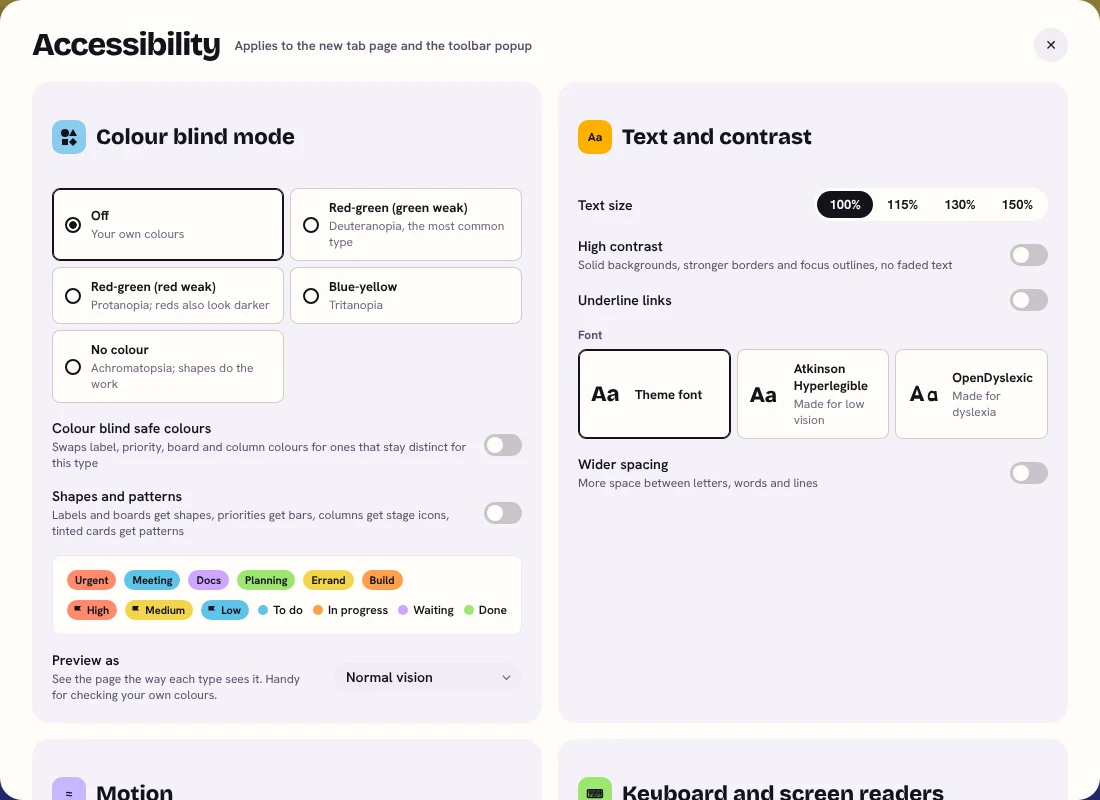
Open ⚙ Settings → Accessibility. New installs also get a short welcome with the most popular options. Every setting applies to the new tab page and the toolbar popup.
Reading
- OpenDyslexic, a font made for dyslexia, or Atkinson Hyperlegible, made for low vision.
- Wider spacing between letters, words and lines.
- Text size of 100%, 115%, 130% or 150%. Browser zoom works too.
- Underlined links.
Colour and contrast
- Colour blind mode for red-green (both types), blue-yellow and no colour vision. It swaps label, priority, board and column colours for a palette tested for that type.
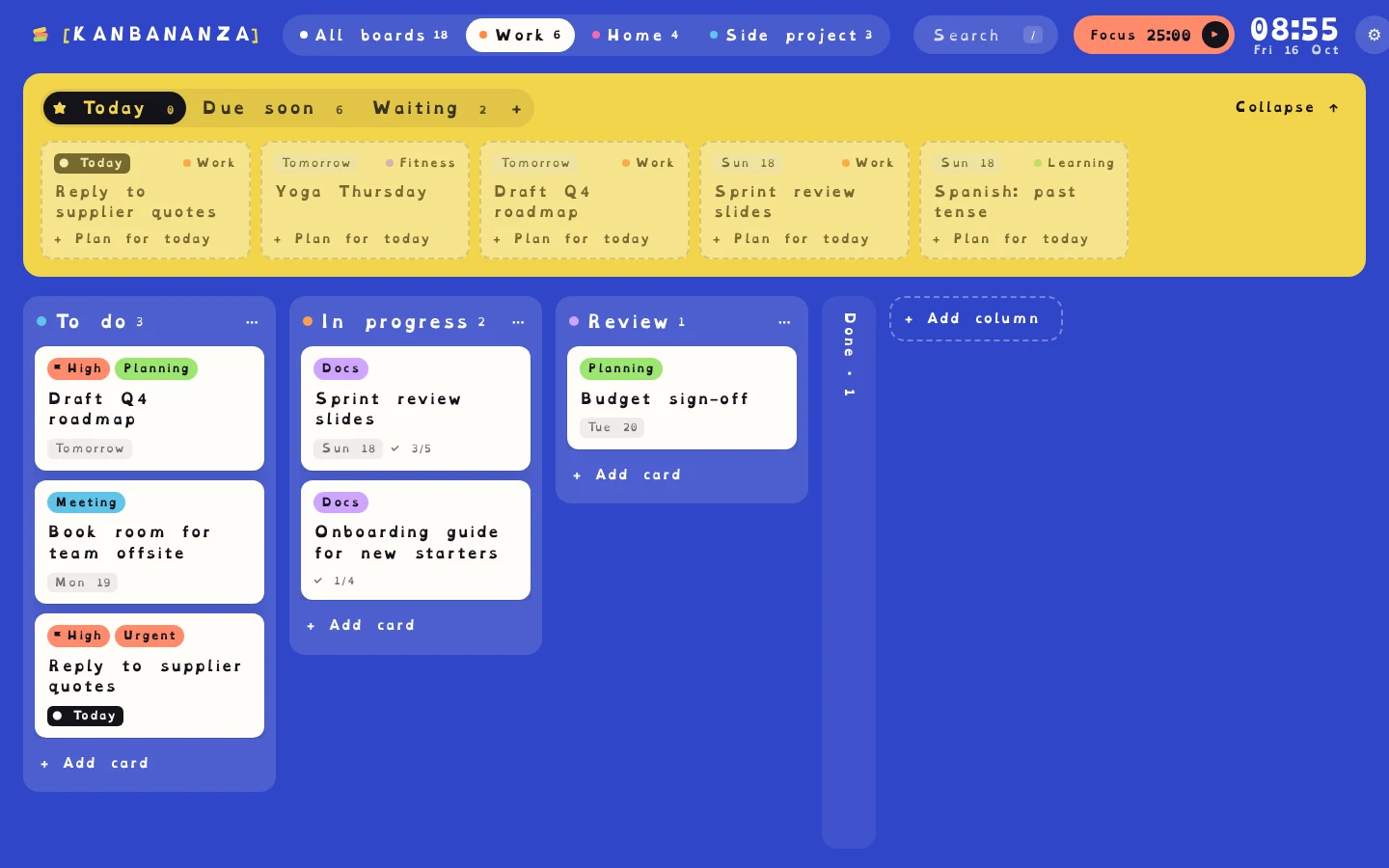
- Shapes and patterns, so colour is never the only clue: labels and boards get shapes, priorities get bars, columns get stage icons, and tinted cards get patterns.
- Preview as, which shows the page the way each type of colour blindness sees it.
- High contrast: solid backgrounds, stronger borders and focus outlines, and no faded text.
Motion
- Animations follow your system's "reduce motion" setting, or you can turn them off or on yourself.
Focus and attention
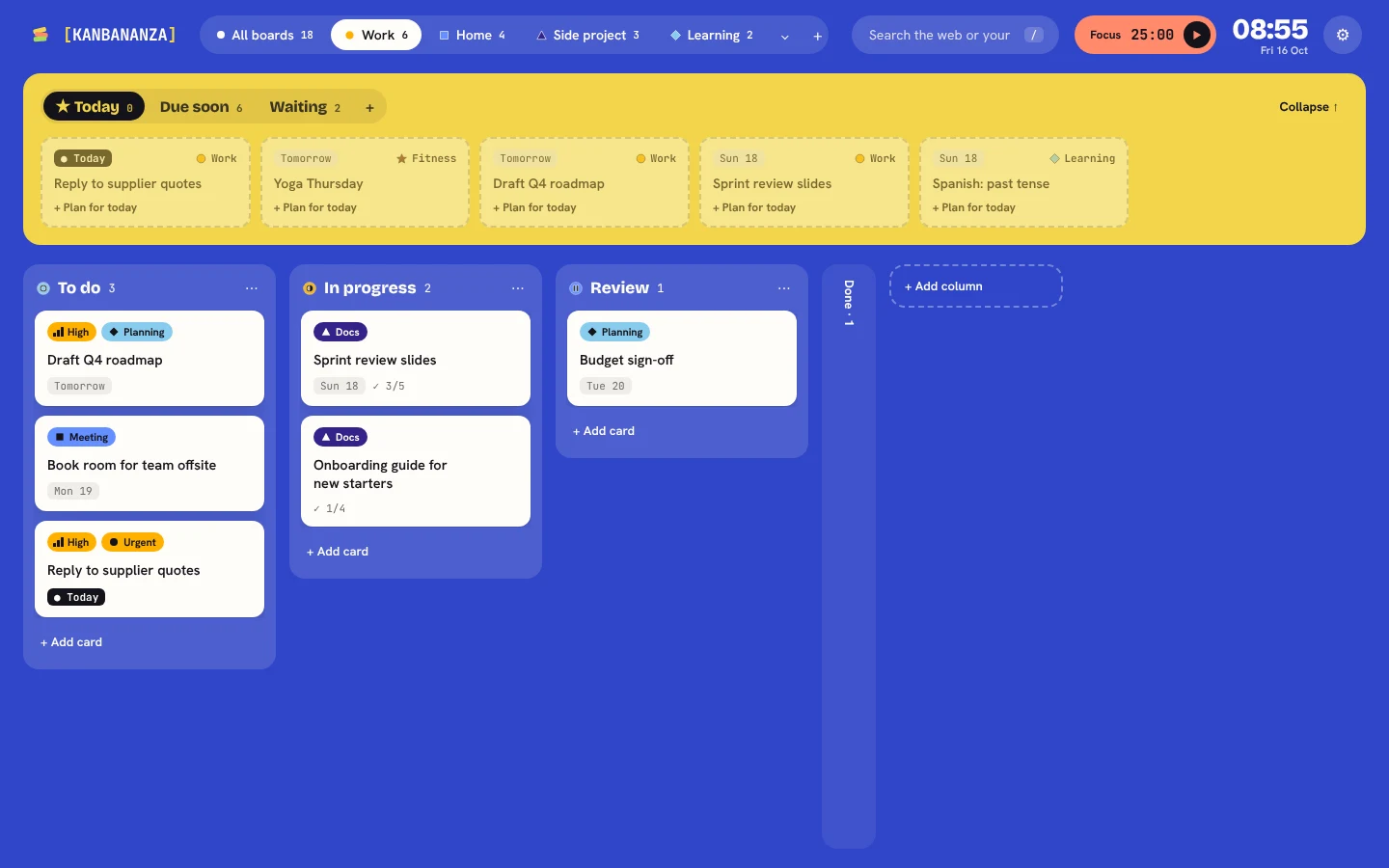
- Today's plan: pick a few cards for today (press p) and see just those.
- Up next: one panel for what's due soon, waiting on someone, or planned.
- A focus timer on every card, with breaks, that logs your time.
- Privacy blur (press B): frosts every card for a clear, distraction-free screen.
- Hide Done columns, a command palette (Ctrl/⌘ + K) to jump anywhere without hunting, and quick add with plain-English dates.
Keyboard and screen readers
- Everything works with the keyboard. Tab moves between controls; dialogs keep focus inside until you press Esc.
- On a board, arrow keys move between cards and Shift + arrows move a card, as an alternative to dragging. Moves are announced to screen readers.
- A "Skip to board" link, visible focus outlines, labelled buttons and fields, and announcements for changes such as undo.
- Charts in Weekly insights can be shown as tables.
- Press ? to see every shortcut.
How we check it
We aim to meet WCAG 2.2 level AA.
- Every screen is checked with automated accessibility tests (axe-core, WCAG 2.2 A and AA rules) before each release. They currently report no issues.
- The colour blind palettes were checked by simulating each type of colour blindness and measuring how far apart the colours land.
- The main tasks are tested using only the keyboard.
KanBananza hasn't had an independent audit or formal testing with screen reader users yet. Until it has, we describe it as partially conformant with WCAG 2.2 AA.
Known limitations
- Privacy blur is visual only. It hides cards from people looking at your screen, but screen readers can still read them.
- Image descriptions are written by you. A picture added to a card starts with its file name, or no description, until you add one.
- Your own colours in custom themes aren't changed by colour blind mode. Its safe colours cover labels, priorities, boards and columns.
- Firefox: the cursor starts in the address bar on a new tab, so single-key shortcuts work after you click the page once.
- The calendar uses drag and drop to reschedule. With a keyboard, open the card and change its due date instead.
- Screen reader support has been built in carefully but hasn't yet been tested with NVDA, JAWS or VoiceOver users. We'd love to hear how it works for you.
Tell us what doesn't work
If something is hard to use, or you need it to work differently, email [email protected]. We read everything and aim to reply within five working days.